Pages

Monday, September 27, 2010

Online Tools for Groups

Blackboard Organizations and Web 2.0 Tools Qlubb & Wiggio
Groups can move into the online world with Blackboard and web 2.0 tools Qlubb and Wiggio. Groups can benefit with shared calendars, file storage, event invites & rsvps, photo sharing, polls, and more. Any kind of group from professional organizations, campus clubs, or hobby groups can use these tools to enhance communication and make organizing easier.

Working within the TWU Community

  • Blackboard offers organizations for group use. Department faculty & staff groups, campus organizations, or specific majors within departments can use this online resource to share announcements, forms, discussion boards and more. Some organizations use this feature to do training or offer policies and procedures, such as Risk Management. Organizations can even be structured so that users can enroll themselves, to minimize administrative functions. Information in organizations can be set up to request acknowledgement of receipt by users for documentation purposes. To request an organization, fill out an organization request form.

Working outside TWU
  • Qlubb offers event calendaring, sign up sheets, photo sharing, member rosters, file sharing, task reminder service, group invites and RSVPs, and bulletin boards.

  • Wiggio offers file sharing and editing, group calendars, polling, posting of links, conference calls, chatting online, mass texting, as well as voice and email messages to the group. Each member can determine their communication preferences.
Thank you to Professor Patricia Nunn, Department Chair, Dental Hygiene Program for this question.

Web 2.0 tools are available to anyone with internet access. Each Web 2.0 tool website offers information about that tool including support options, if available.

Monday, September 20, 2010

Tip of the Week: Organizing Team Projects

Web 2.0 Tools: Central Desktop, Comindwork, or AceProject
Projects can include sharing files, timelines, charts, graphs, discussions, meetings, and more. Projects may be faculty research, staff office projects, departmental accreditation, or even group projects within classes. There are many Web 2.0 tools that offer helpful tools to work within teams both inside the TWU community and with those outside the university.

What’s the difference?

  • Comindwork offers member management, invites, project blogs, wikis, milestones, time logging, file sharing, cases/issues, history, search, and reports. The free account offers 1 active project, unlimited users, and 20 MB file storage. All accounts offer the following:

    Collaboration: to-do lists, milestones, discussions, tickets, time tracking, RSS, reminders, notifications

    Knowledge management: enterprise wiki, documents, blog, files storage, tagging, linking, versions

    Tools: charts, reports, reply and upload by email, rich editor, video reply, semantic search, export/import
  • Ace Project includes projects, tasks, documents, calendars, statistics, forums, time reports, task reports, time approval, notes and Gantt charts. The free account offers up to 5 users, 5 projects, 50 MB of storage space.
  • Central Desktop offers wikis, databases, project blogs, and user forums. The free account offers 2 workspaces, up to 5 members per workspace, 25 MB of space, as well as audio conferencing and SSL (256 bit encryption).
Thank you to Jacqueline Folsom, Program Coordinator, Associate Provost Office for this question.

Monday, September 13, 2010

Tip of the Week: Managing Multiple Schedules

Applications: Outlook Web 2.0 Tools: Tungle & Doodle
Scheduling a meeting with multiple people can be challenging. Finding a time that works for everyone is the first step. To manage multiple schedules, there are several technology tools available.

Within the TWU Community

Microsoft Outlook calendars offer schedule availability options. Each faculty and staff member can designate times as busy, free, tentative, or out of the office.
To schedule a meeting in Outlook:
  1. Click on the calendar tab in the navigation pane
  2. Select the date for the meeting
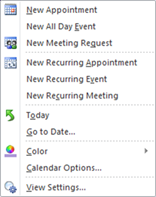
  3. Right-click to open the dialog box and choose an option such as New Appointment, New All Day Event, New Meeting Request, etc.
  4. A new dialog box will open. Select options for title, location, length of meeting, reminders, importance, etc.
When inviting others to a meeting with a meeting request, they are given the option to accept, decline, or mark tentative. The meeting request then keeps track for you of who has responded and how.

Outside the TWU Community

When working with a group of people from outside the campus, there are Web 2.0 tools available to use in scheduling. Tungle and Doodle are web based applications that have free account options.

Tungle synchronizes several calendars of different types including Google apps and Microsoft Office Outlook. Tungle can be accessed using accounts you may already have including Facebook, Twitter, and LinkedIn. Tungle also offers an app for smartphone users.

Doodle synchronizes calendars of different types including Google, Microsoft Office Outlook, ICal, Yahoo, and Live. Registration is optional. Doodle also offers an app for smartphone users.

Thank you to Matt Moustakas, Director of Environmental, Safety & Health, Facilities Management & Construction for sharing these tools!

Monday, August 30, 2010

Voicemail Tip of the Week: Phone Commands

Voicemail
Voicemail offers the option to set an Out of Office greeting and status that can be set to give callers information about your absence. Check for procedures within your department for specific items to be included in your greeting such as information about dates of absence and return, regular office hours, and when they can expect a return phone call. Your department may also ask you to offer website information if that is an acceptable means of information for callers. It is recommended that each person updates their greeting, and offices should be sure the main departmental line is updated when hours are changed. Upon return to work, be sure to switch back to the regular greeting and status. Step-by-step instructions for Out of Office messages

Phone Forwarding

As a courtesy to callers, be sure to forward each voicemail enabled phone immediately to voicemail. This quickly gives information to callers. Upon return work, be sure to clear immediate forwarding and reset as appropriate for your office. Step-by-step instructions for Phone Forwarding.

Outlook Email

Microsoft Office Outlook’s Out of Office Assistant can be used to automatically respond to email messages in the event of an absence. The Out of Office Assistant can respond differently to emails within and outside of TWU. Check for specific procedures within your department for specific items to be included in your Out of Office replies such as dates of absence and return, an alternative point of contact, and when to expect a response. Your department may also ask you to offer website information if that is an acceptable means of information for inquiries. Upon return to work, be sure to remove the automatic response. Step-by-step instructions on using Outlook's Out of Office Assistant.

Note:
Visit our blogpost to find out how to Set Out of Office using Outlook Web Access.

NOTE: Remember to remove the out of office status on your e-mail & voicemail. Removing out of office must be done on both voicemail and e-mail.


Voicemail is available for all permanent faculty and staff.
To setup an account e-mail voicemail@twu.edu from your TWU e-mail account and include name, campus and telephone extension.

Want more information? Call the TWU Helpdesk (940) 898-3971

Monday, May 10, 2010

Web 2.0 Tool of the Week: Aviary

(http://www.Aviary.com)
Aviary is a suite of powerful graphic creation applications that you can use directly in a web browser. Aviary offers an open canvas from which users can create, edit, and develop their artistic visions. From novice to artist, anyone can create using Aviary and the variety of tools they offer.

About Aviary
  • Basic account is free; paid account offers full access to the entire suite of applications, enhanced file sharing and collaboration, full watermark control, and unlimited storage.
  • Programs in the tool include:
    • Phoenix- layer-based image editor, comparable to Photoshop
    • Peacock- visual laboratory for creating amazing effects and visualizations
    • Toucan- customized color palette coordinator
    • Raven- vector image editor, comparable to Illustrator
    • Falcon- basic image markup with shapes and text, similar to Smart Art in Office
    • Myna- audio editor, comparable to Audacity
    • Talon- Firefox extension that allows users to perform screen capturing

Why use Aviary?
  • Photo-editing
  • Create logos or original illustrations
  • Create a course banner
  • Create or edit images for presentations

Ready to explore Aviary?
Sign up for an account here.

Already using Aviary?

Share with us a creation you’ve made on Aviary in this post's comments..

Monday, May 3, 2010

Web 2.0 Tool of the Week: Diigo

(http://www.Diigo.com)
Diigo is a social bookmarking and annotation site for people to discover and share web content. Users can highlight content directly on web pages and post sticky notes for additional commenting. The site allows users to “like” a site, share a site by email, categorize sites, and comment on various items posted. Content can be public or private. Educators can apply for a special free account to use with student groups.

Account Information
:
  • Diigo accounts are free
  • Accounts can be connected to other social networking sites such as Facebook or Twitter

Why use Diigo?
  • Discover popular web sites
  • Collaborate on research and projects
  • Enhance class communication using web content
  • Submit your favorite web content
  • Bookmarks can be “tagged” for easier searching
  • Search with terms of your choice
  • Information can be accessed anywhere with internet connectivity

Ready to explore Diigo?
Sign up for an account here

Already using Diigo?

Tell us other things you like about Diigo in this post's comments

Monday, April 26, 2010

Voicemail Tip of the Week: Phone Commands

TWU’s new voicemail system is integrated with email. Voicemail messages are automatically delivered to your email inbox. Messages can be accessed by phone, or by email, whichever is preferred. When accessing the system by phone, keystrokes are used to perform functions. Some of the commonly used functions are listed below.

To access the voicemail system from your office phone:
Denton: call 4646, press #, enter security code
Dallas & Houston: call 81 4646, press #, enter security code

Listen to new press 1, 1
Listen to saved press 1, 2
Save a messagepress 1
Fwd a messagepress 2
Delete a messagepress 7
Reply to a messagepress 5, 2
Call back the sender of a messagepress 5, 1
To bypass a greetingpress #
To record a greetingpress 5, 4, 1
Listen to greetingpress 5, 4, 2
Change security codepress 5, 5, 3
Time/date message stampAutomatically read
Log out of boxhang up

Important Note: Voicemail and e-mail are integrated on this system. Voicemail messages are automatically delivered to your email inbox. Messages can be accessed by phone, or by email, whichever is preferred.

During message playback, there are several features available:

Save current message..................... 1
Forward message to extension....... 2
Skip to next message..................... 3
Replay current message................. 4
Rewind message 6 seconds........... 5
Fast forward message 6 seconds... 6
Delete this message, play next....... 7

Features available at all times:

Return to a previous menu............. *
Finish a key entry........................... #

Voicemail is available for all permanent faculty and staff. To setup an account, e-mail voicemail@twu.edu from your TWU e-mail account and include name, campus and telephone extension.

Want more information?
Call the TWU Helpdesk (940) 898-3971